The Sales Associate Experience
Enabling Sales Associate Features
If you haven’t already, you will need to register for an account on your BigCommerce site. Your store administrator will then need to add you to a special customer group to enable the sales associate features for you.
Here are the steps to follow to enable Sales Associate Features:
- Login to your Bigcommerce Account.
- From the left panel, navigate to ‘Customer’ -> ‘Customer Groups’
- Create a customer group with a name ‘swym-htc-sales-associate’
- Navigate to Customer->Add->Create a customer with the SA’s email address. (If they have already registered on your ecommerce site then enter the same credentials)
- Assign the created customer group (swym-htc-sales-associate)to the Sales Associate
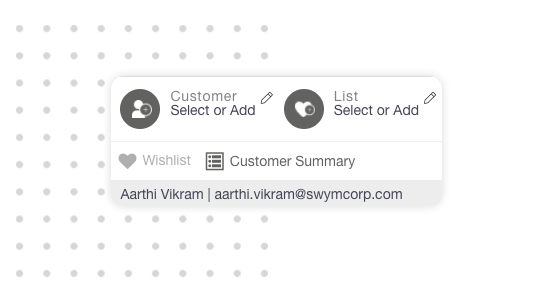
- After an hour, the Sales Associate should see a panel in the lower right corner when they log in to your Shopify website. (Navigate to the home page to see the Sales Associate panel)
The Sales Associate Panel
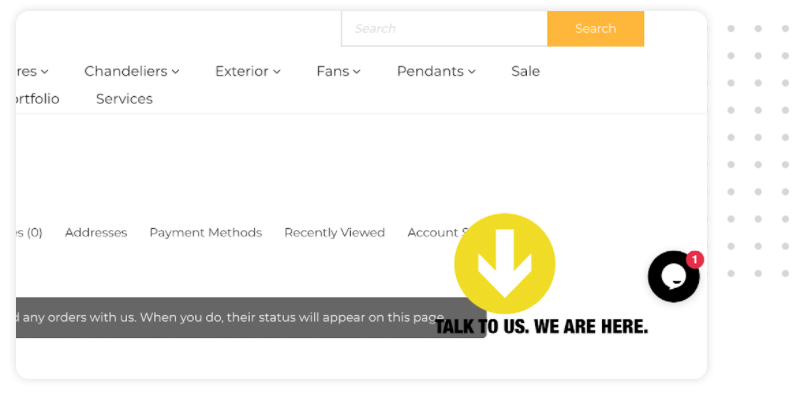
Approximately an hour after your administrator has added your BigCommerce profile to the Sales Associate customer group, you should see a panel (outlined in red below) in the lower right corner when you log in to your BigCommerce website.
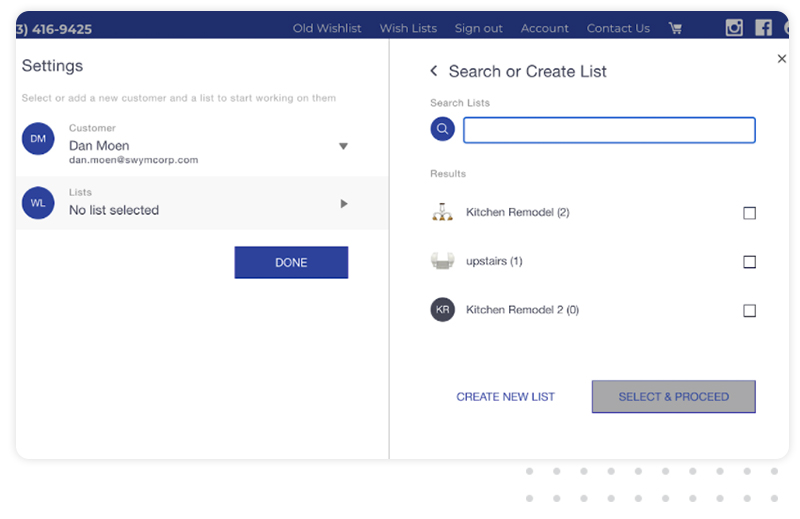
The panel allows you to select a customer to create or edit lists for and to select which list(s) you want to work with.
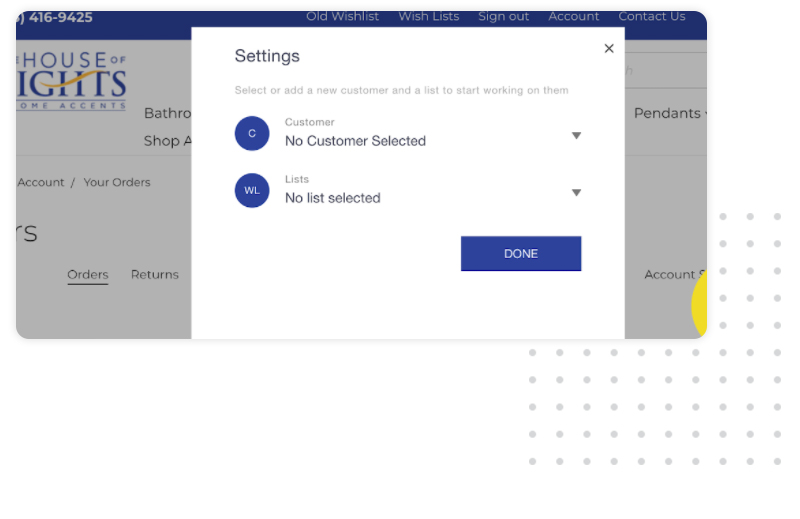
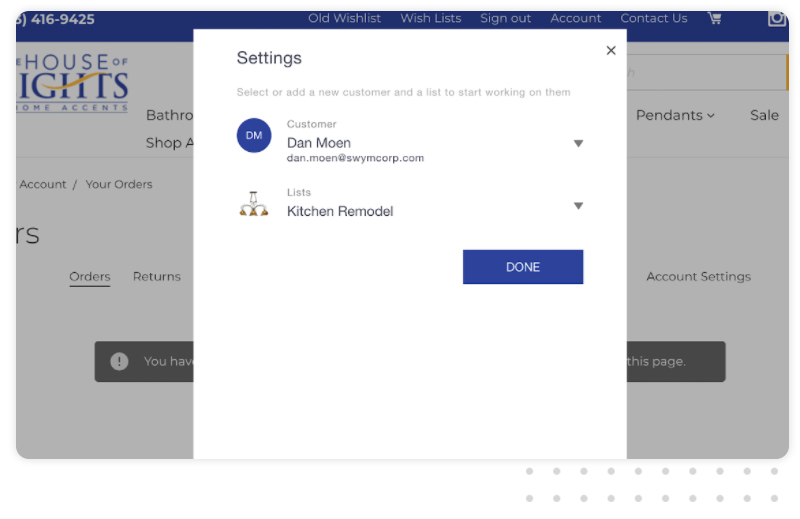
Clicking on the panel opens a modal (pop up) that allows you to select which customer and list you want to work with.
Selecting A Customer And List(S)
Start by clicking on the customer section to find or add the customer you want to work with. The most recent customers you worked with will be shown in the Results list.
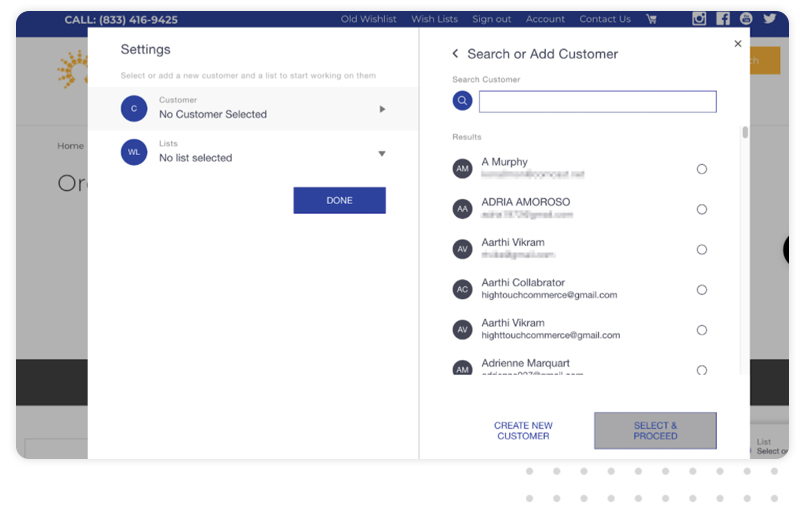
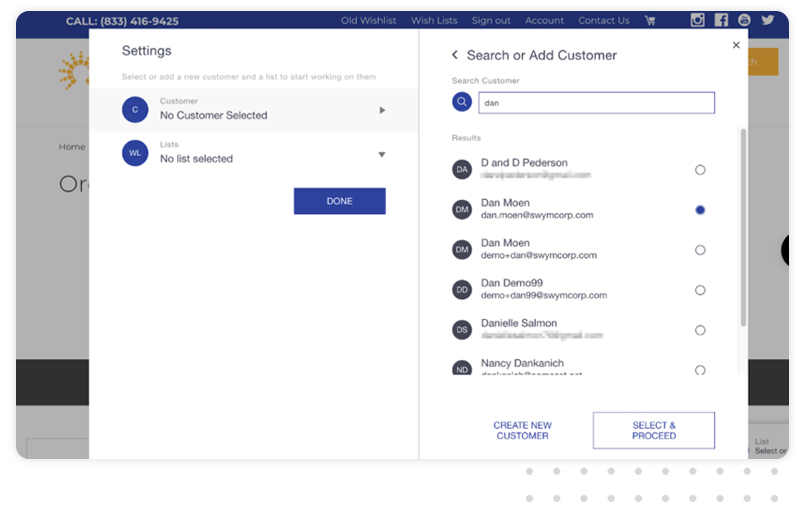
When you find the customer, select them by clicking on the radio button to the right of their listing and click the Select & Proceed button.
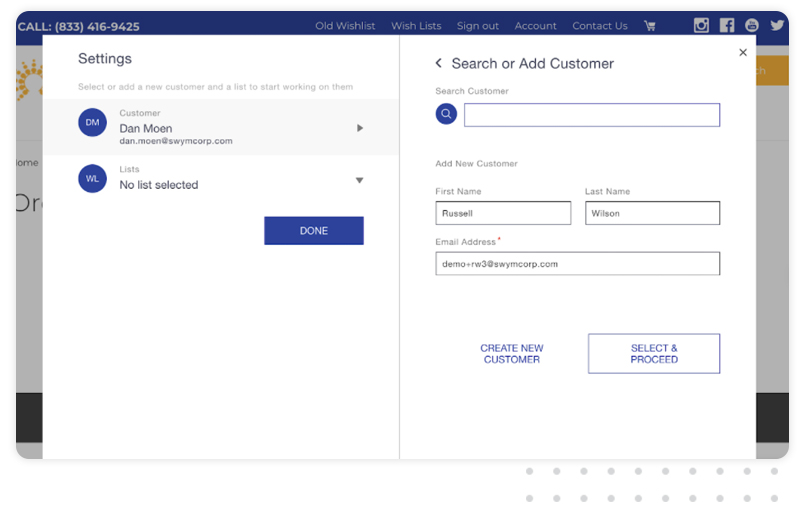
If you can’t find a customer, it’s likely that they are not registered on your BigCommerce site. You can create a wishlist profile for them by clicking on the Create New Customer button.
Adding Products To Lists
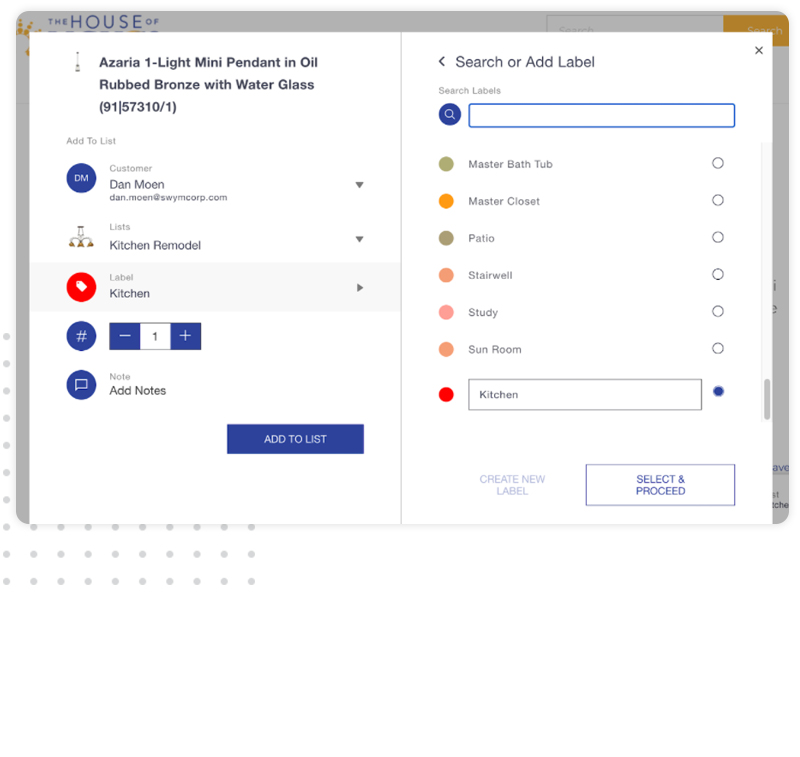
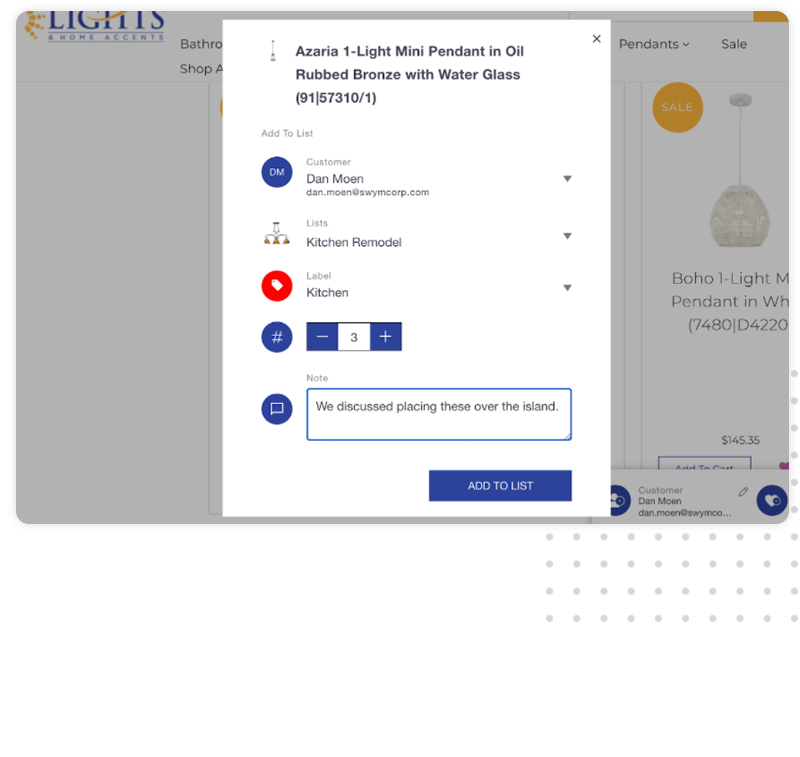
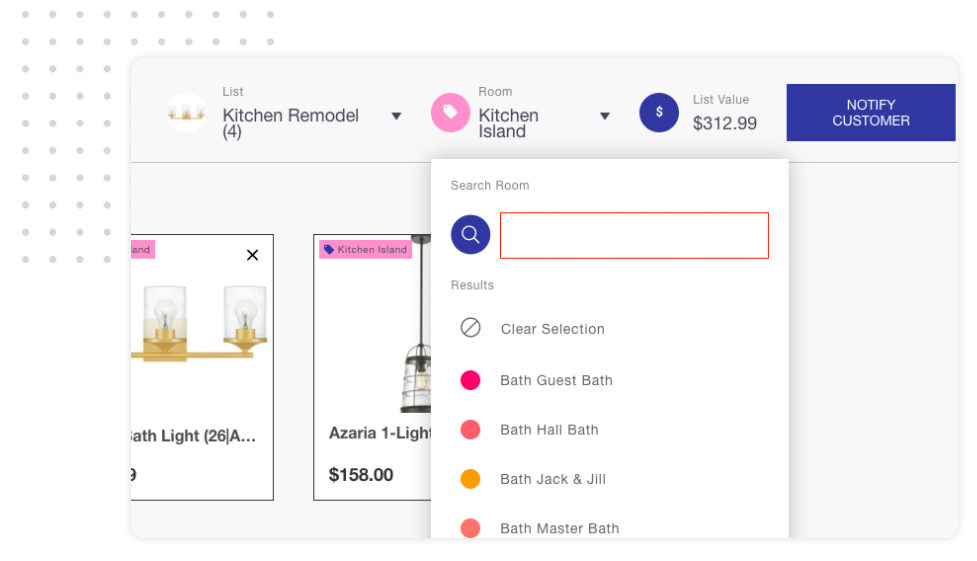
Once you’ve selected a customer to shop for and a list or lists to add to, you can add products by using the Save links on collections or product detail pages. A modal (pop up) will open, asking you to assign the product to a Room (referred to as Label in the image below).
Adding Additional Comments
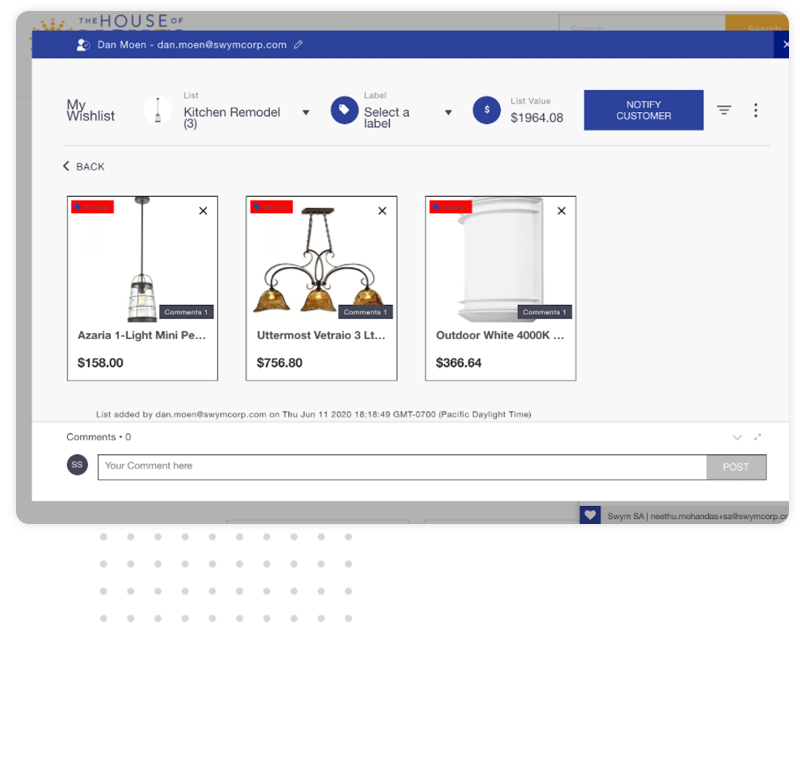
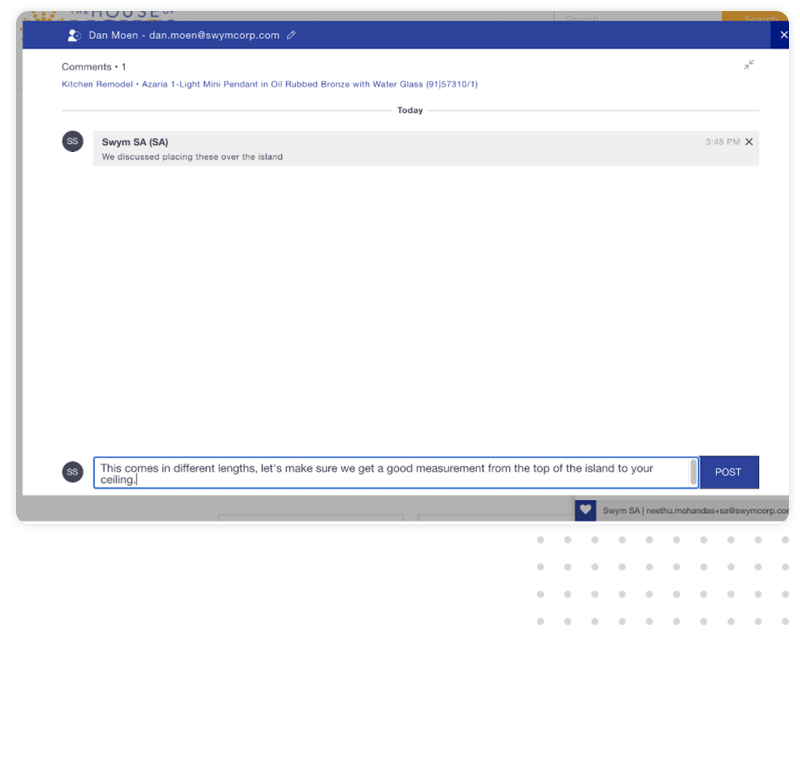
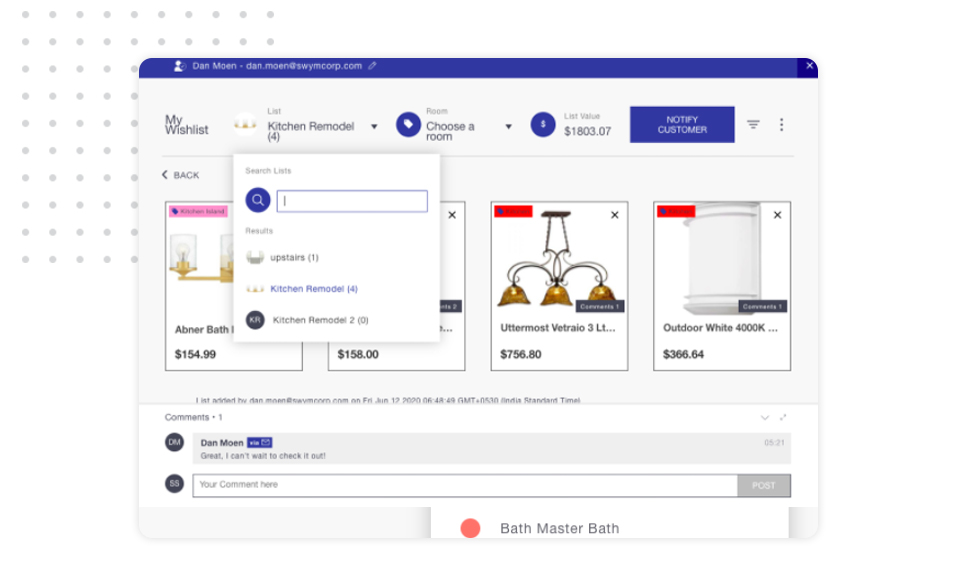
Access the list(s) you created by clicking on the heart icon on the Sales Associate Panel. Once open, you can add list-level comments, which can be used for communication for the project as a whole.
Inviting Customers To Collaborate
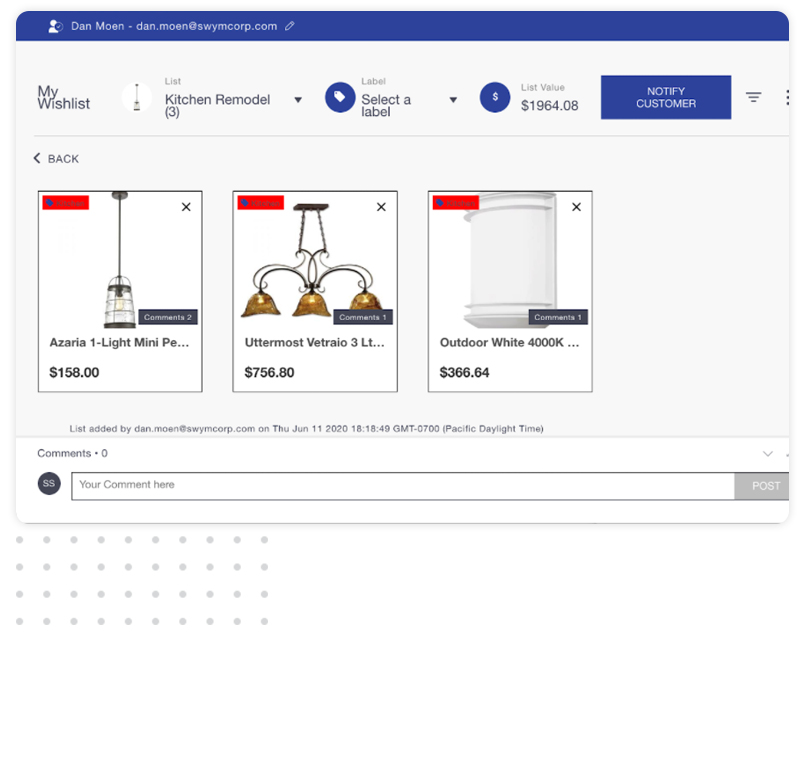
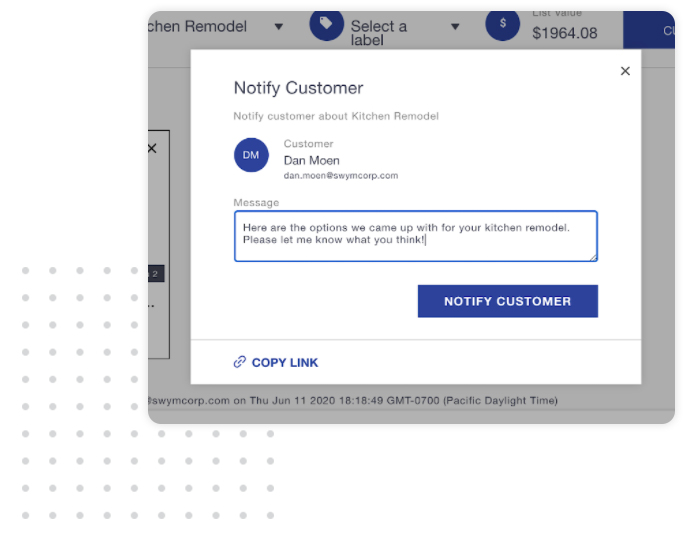
Once you are happy with the list, invite the customer to collaborate with you by hitting the Notify Customer button.
Other Wishlist Features
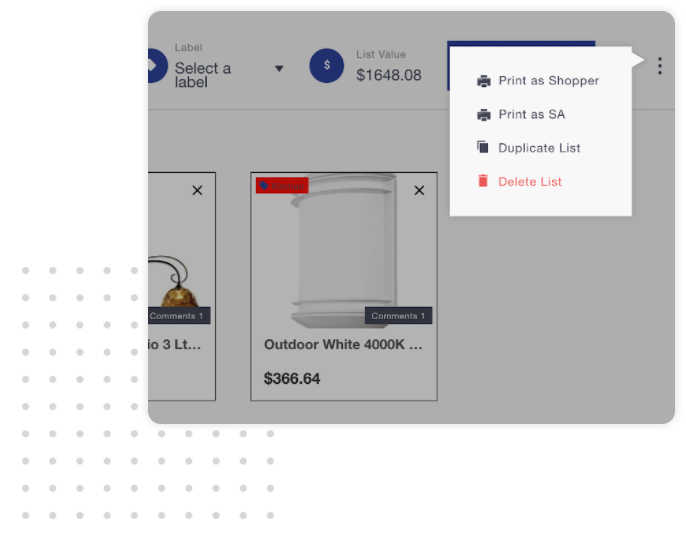
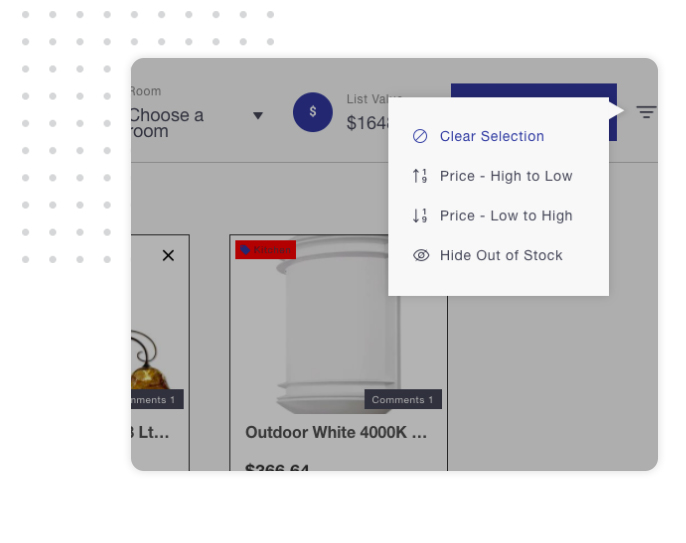
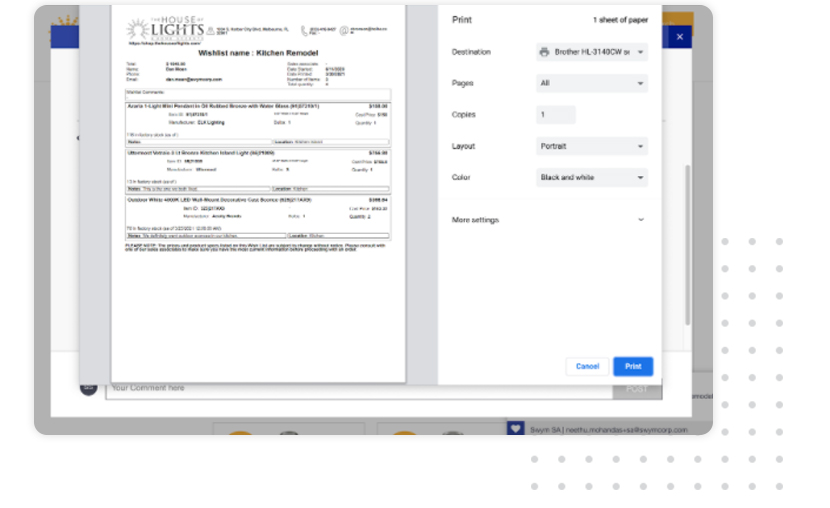
The menu in the right corner (three vertical dots) gives you access to print, duplicate or delete the list.
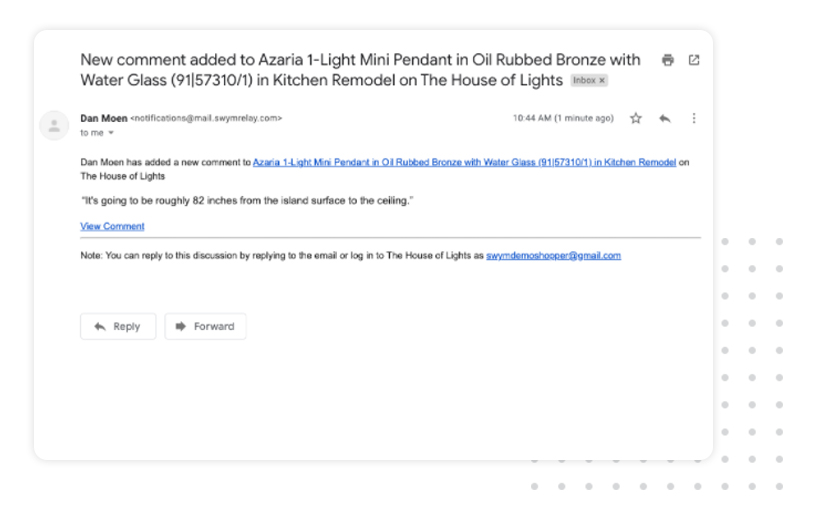
Alerts For Comments
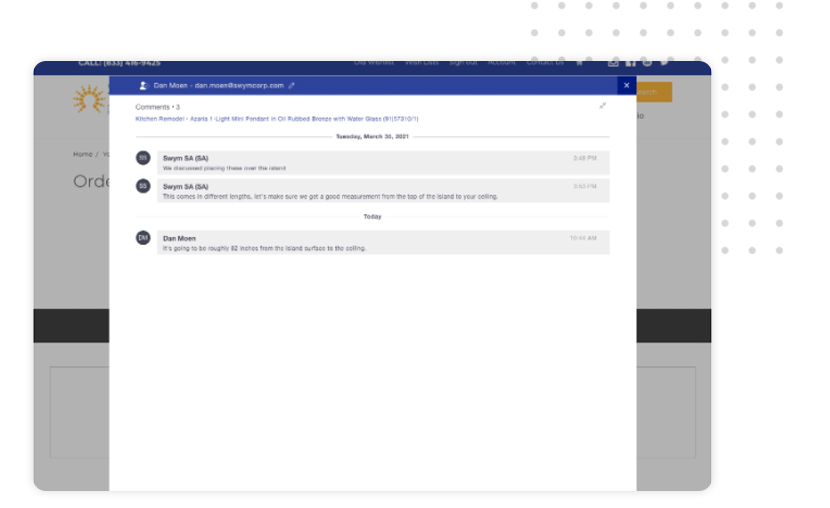
As comments are added for both lists and products, alerts are sent to the other collaborators.
Comment Threads Enable Asynchronous Communication
Comments are captured and stored at both the list and product levels throughout the life of the list. This makes collaboration possible throughout long and complex purchases.