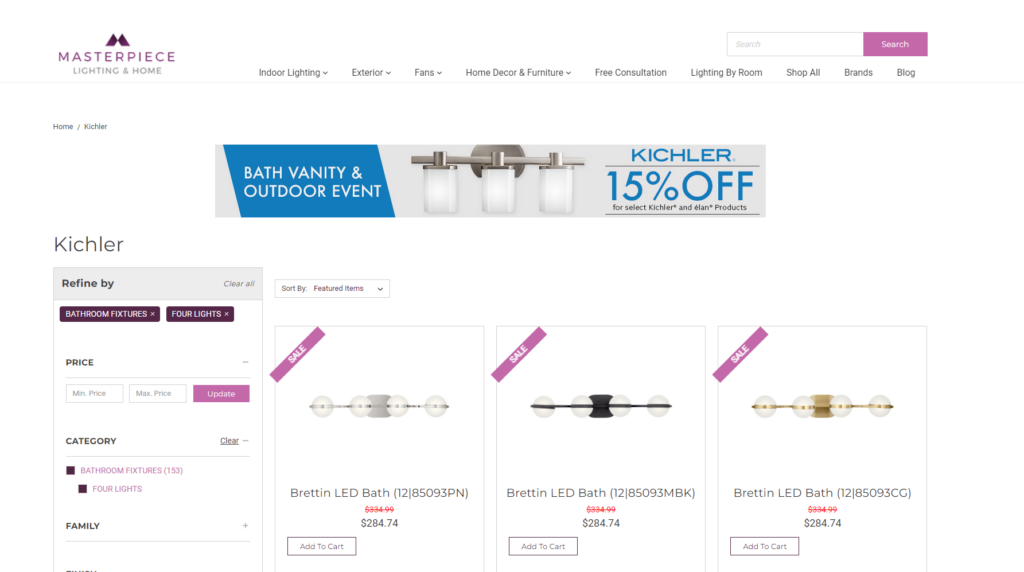
Enabling Marketing Banners

Enabling Promotional Pricing on your BigCommerce Catalog
Requirements:
- BigCommerce Catalog
Important Notes:
Only one banner per category or brand page
Steps:
- Login to your BigCommerce dashboard
- Go to Marketing > Banners
- Click the “Create A Banner” button to create a new banner
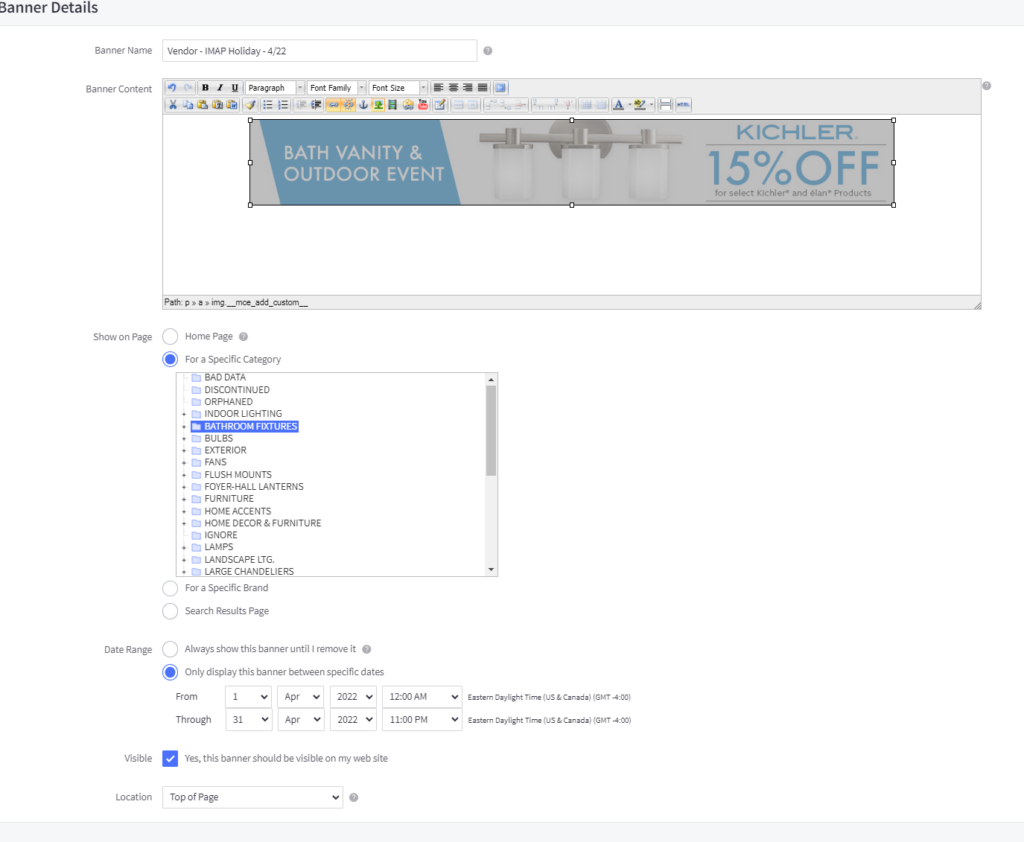
- Create a Descriptive Name for the Promotion
- Download Image Asset from data provider and Upload Image
- Select image to make it blue and setup the following:
- Select which page to show on. We recommend setting up one for brand and category using the same dynamic link above. Doin this will ensure when the banner is clicked on only applicable products will show.
- Set Promotional Dates – Banner will automatically push and pull based on dates selected
- Set Location – Set to “Top of Page”
- Press Save
Example:
Front End Result: